
How to Install Ultimate TV Solutions on Apple TV, iPhone & iPad Using UHF

Installation Guides / Apple Devices
Follow these eight steps to install UHF on Apple TV, iPhone, or iPad and connect your Ultimate TV Solutions service.
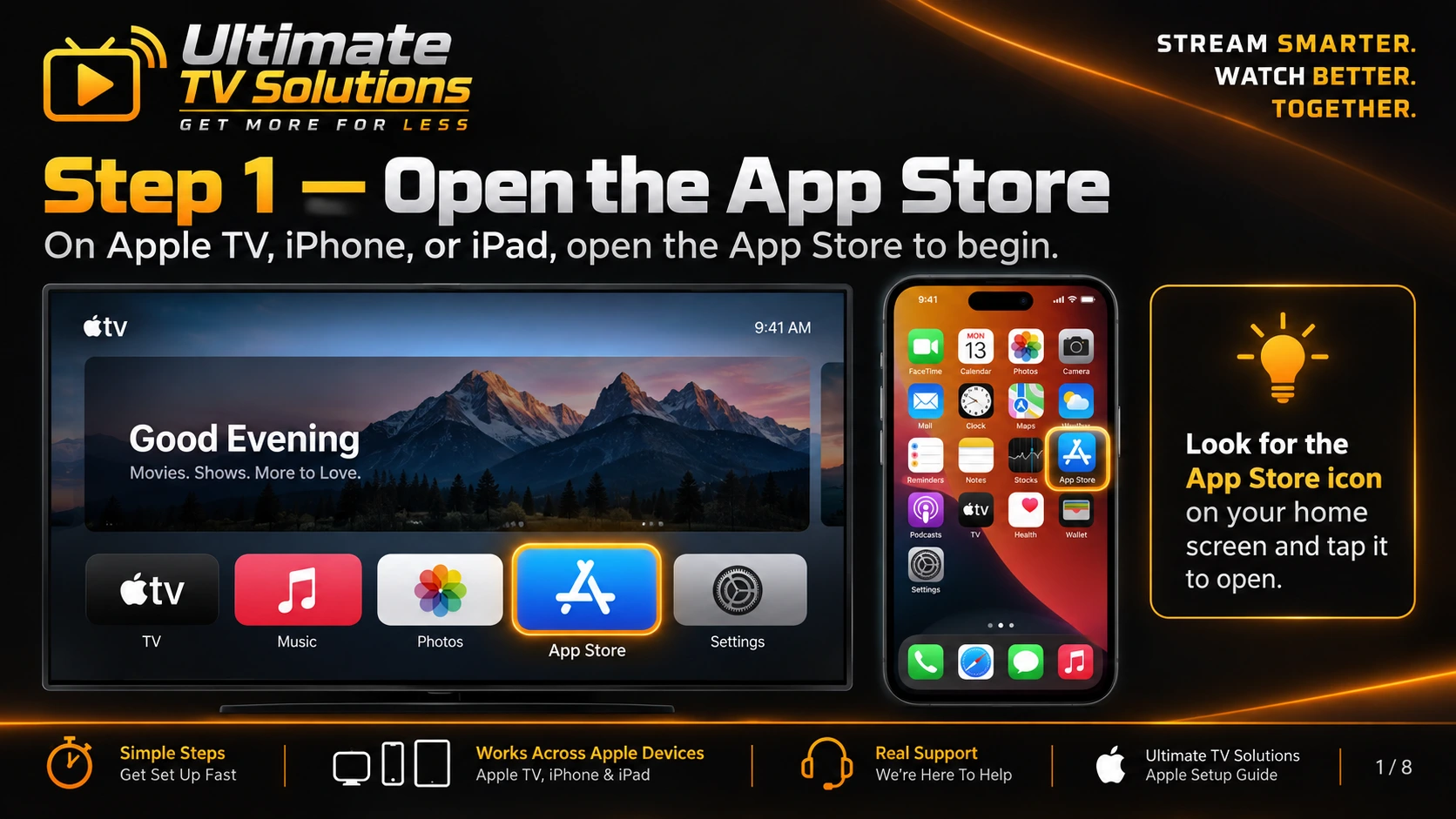
Step 1 — Open the App Store
Apple TV, iPhone, and iPad users should open the App Store.
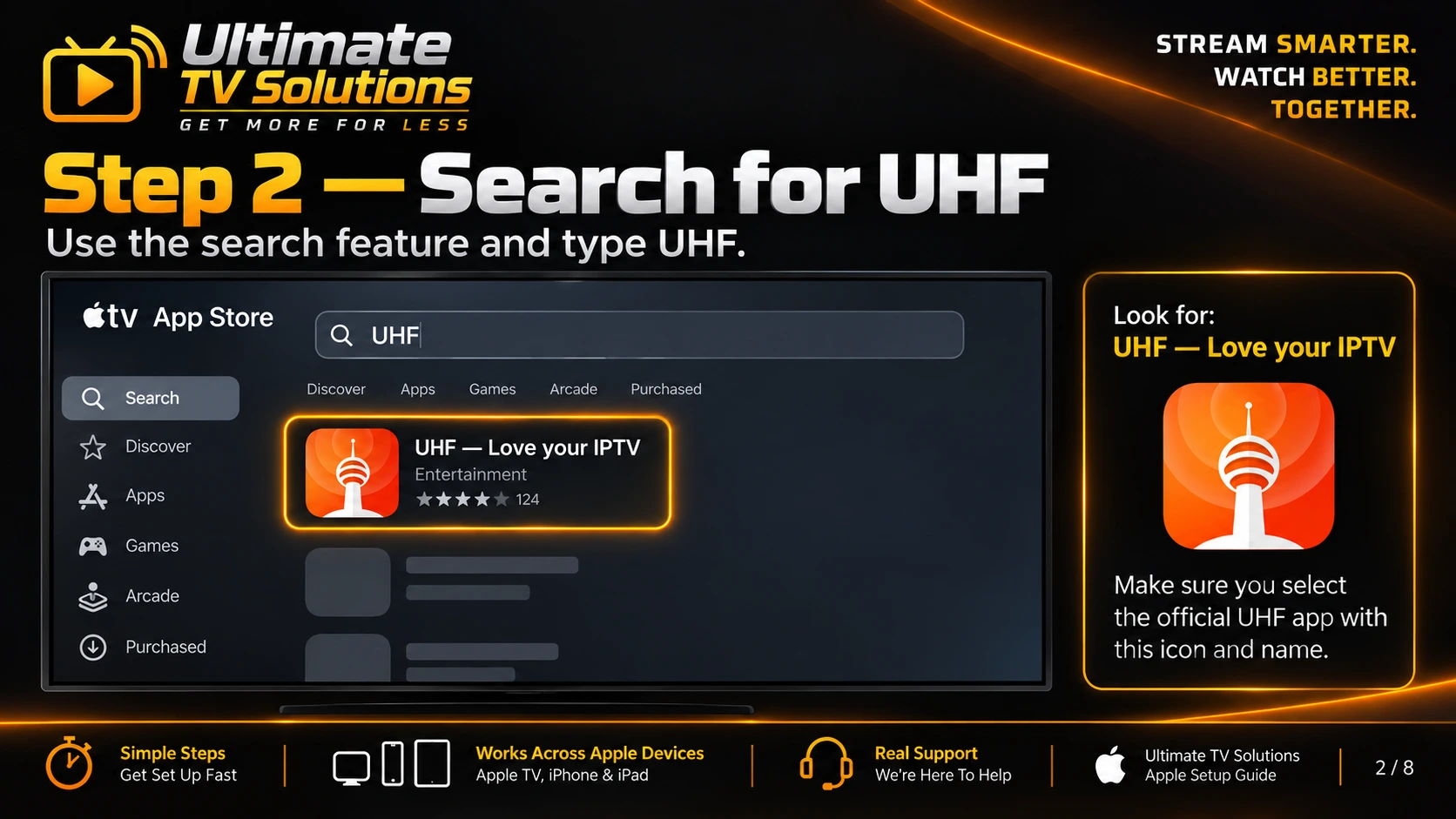
Step 2 — Search for UHF
Search for UHF — Love your IPTV and select the official UHF app.
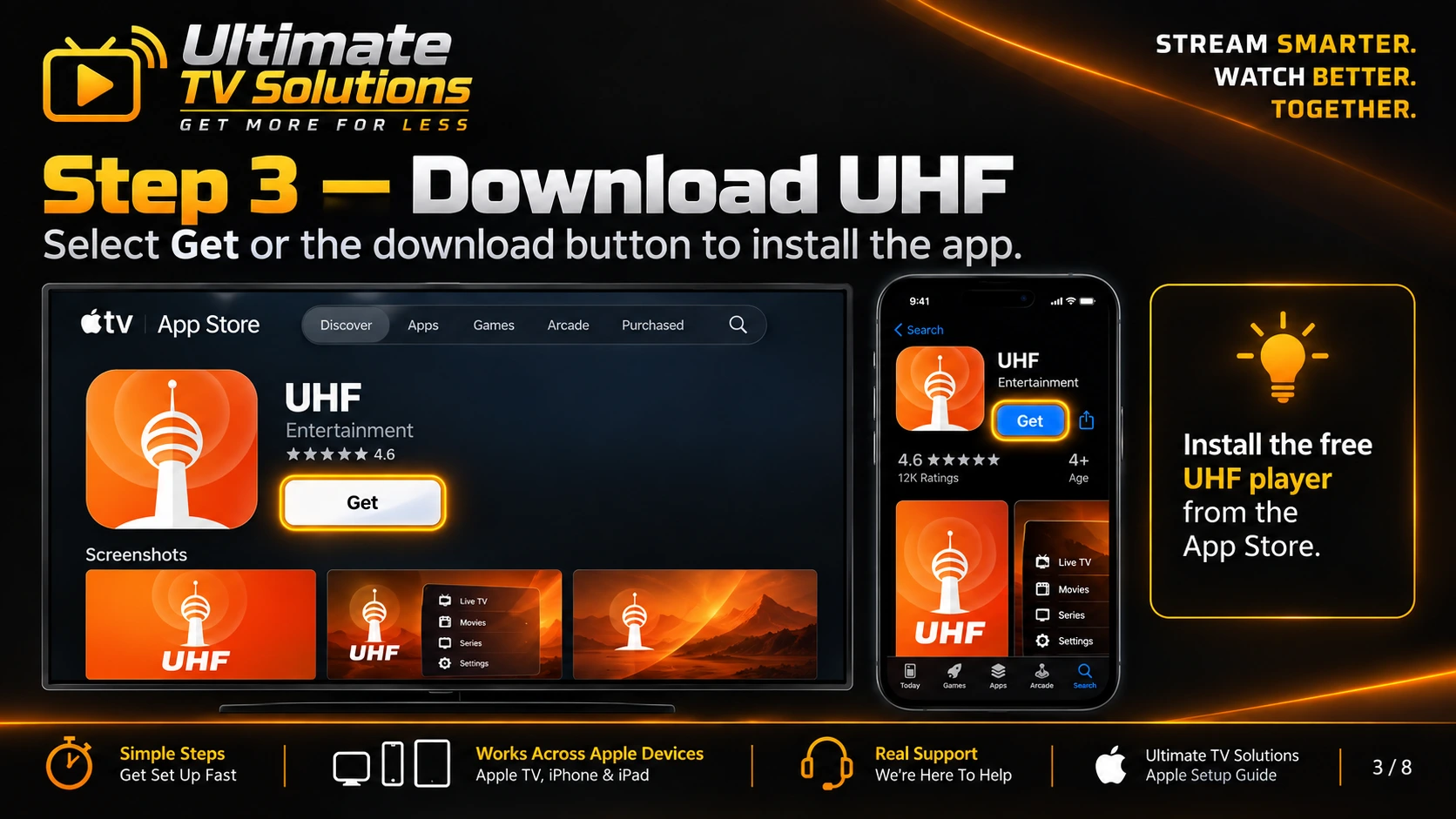
Step 3 — Download UHF
Select Get or the download button to install the app.
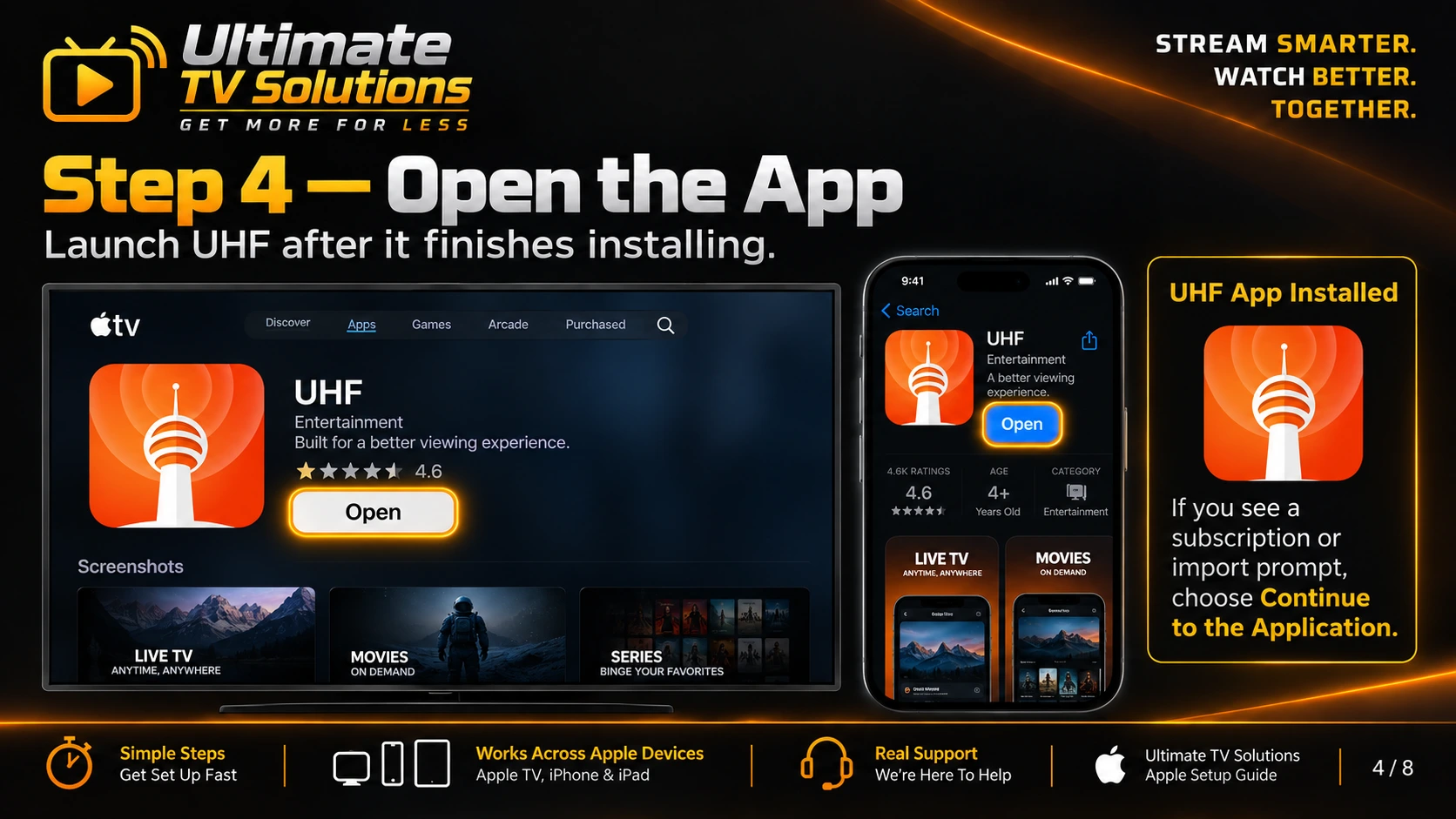
Step 4 — Open the App
Launch UHF after installation. If a subscription or import prompt appears, choose Continue to the Application.
Step 5 — Create a Playlist
Select Create Playlist and choose Xtream Playlist.
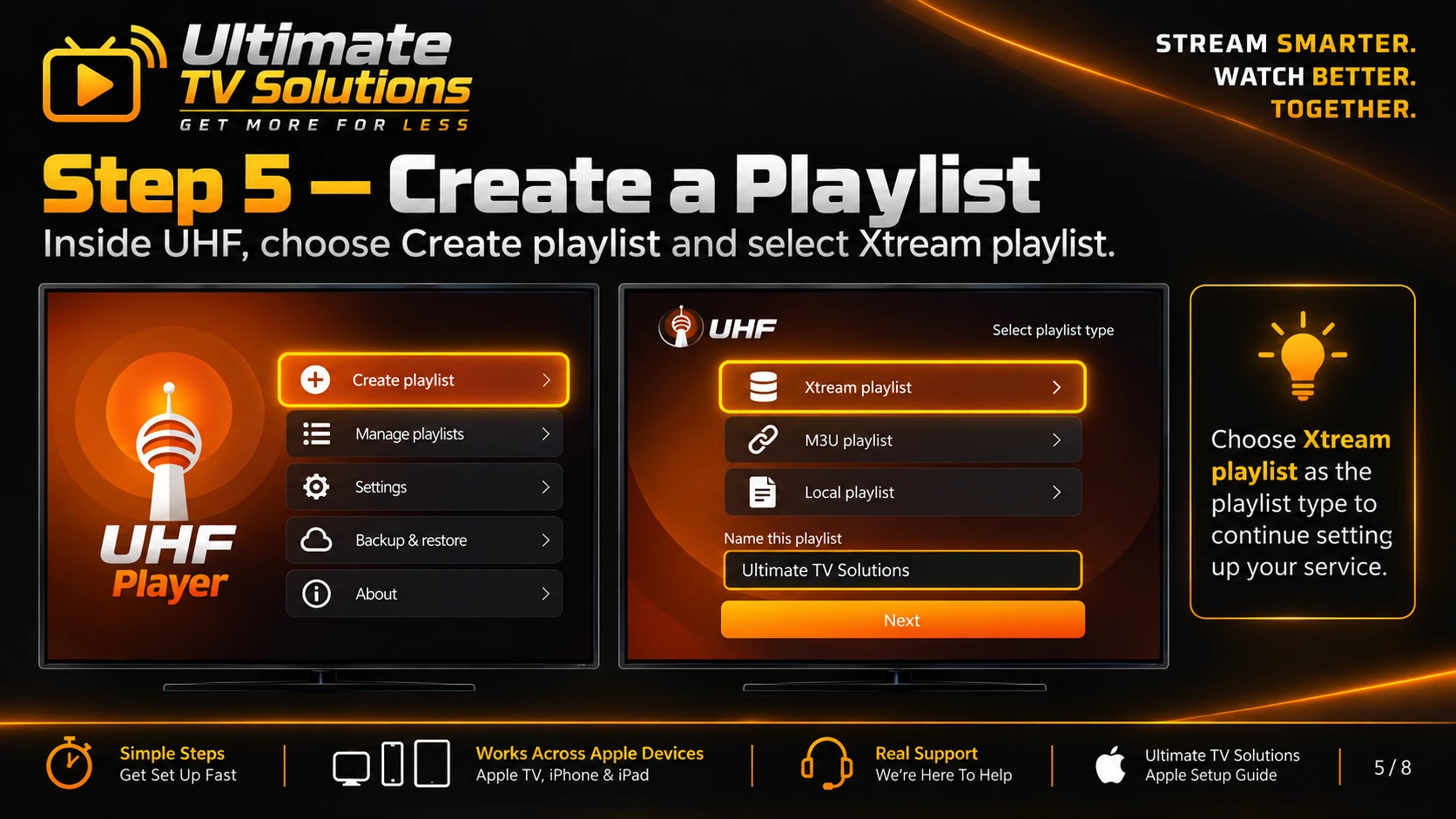
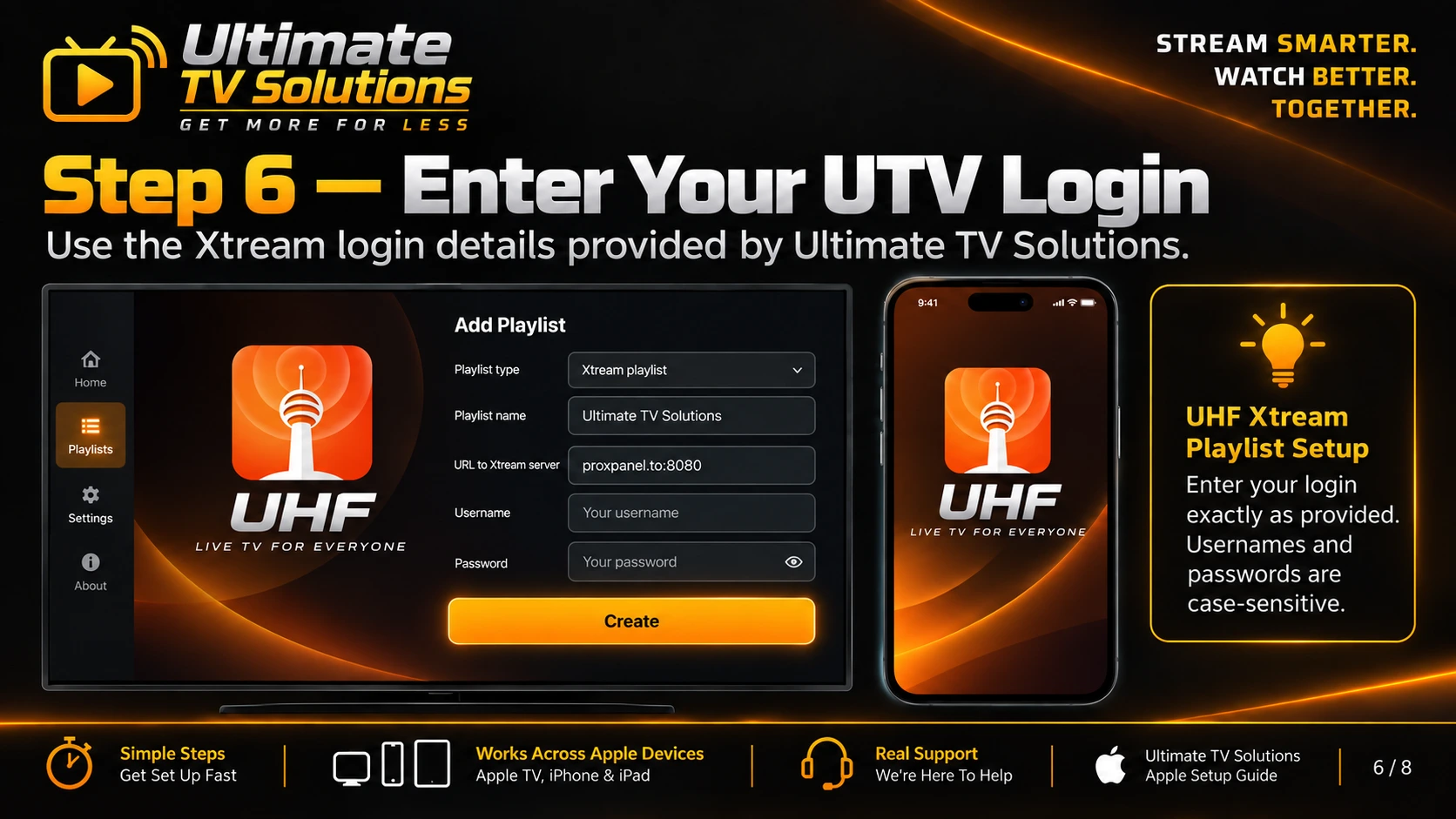
Step 6 — Enter Ultimate TV Solutions Login Information
Use the TV service credentials provided to you.
- Playlist Type: Xtream Playlist
- Playlist Name: Ultimate TV Solutions
- Server URL: http://proxpanel.to:8080
- Username: Enter the username provided with the customer’s service
- Password: Enter the password provided with the customer’s service
Important: Usernames and passwords are case-sensitive. Enter all login information exactly as provided.
Enter the full server address, including http:// and :8080. Your TV service credentials may differ from your Support Center login.
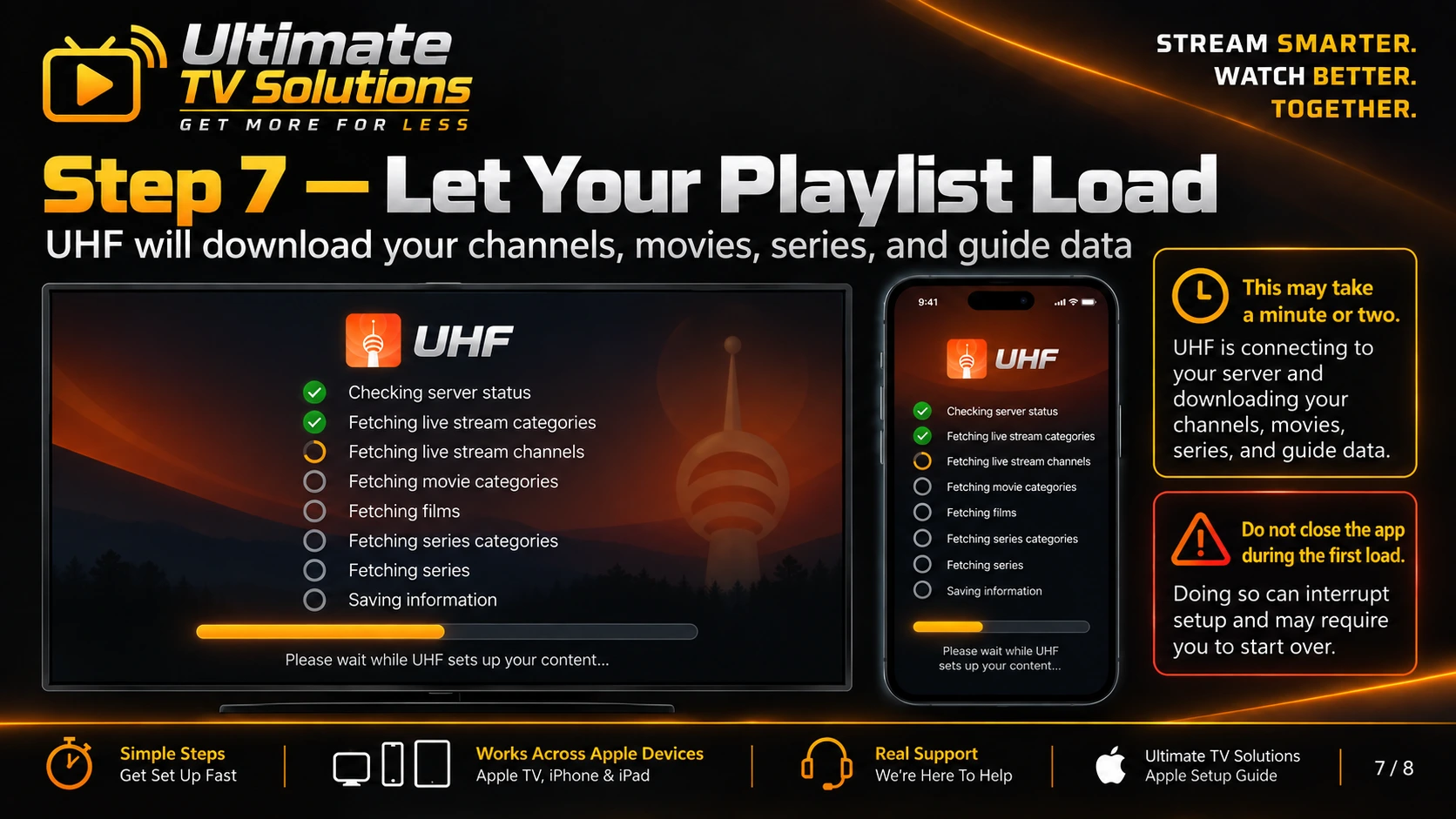
Step 7 — Allow the Playlist to Load
UHF will load Live TV, Movies, Series, and guide information. Do not close the app during the initial loading process. Allow the playlist to finish loading.
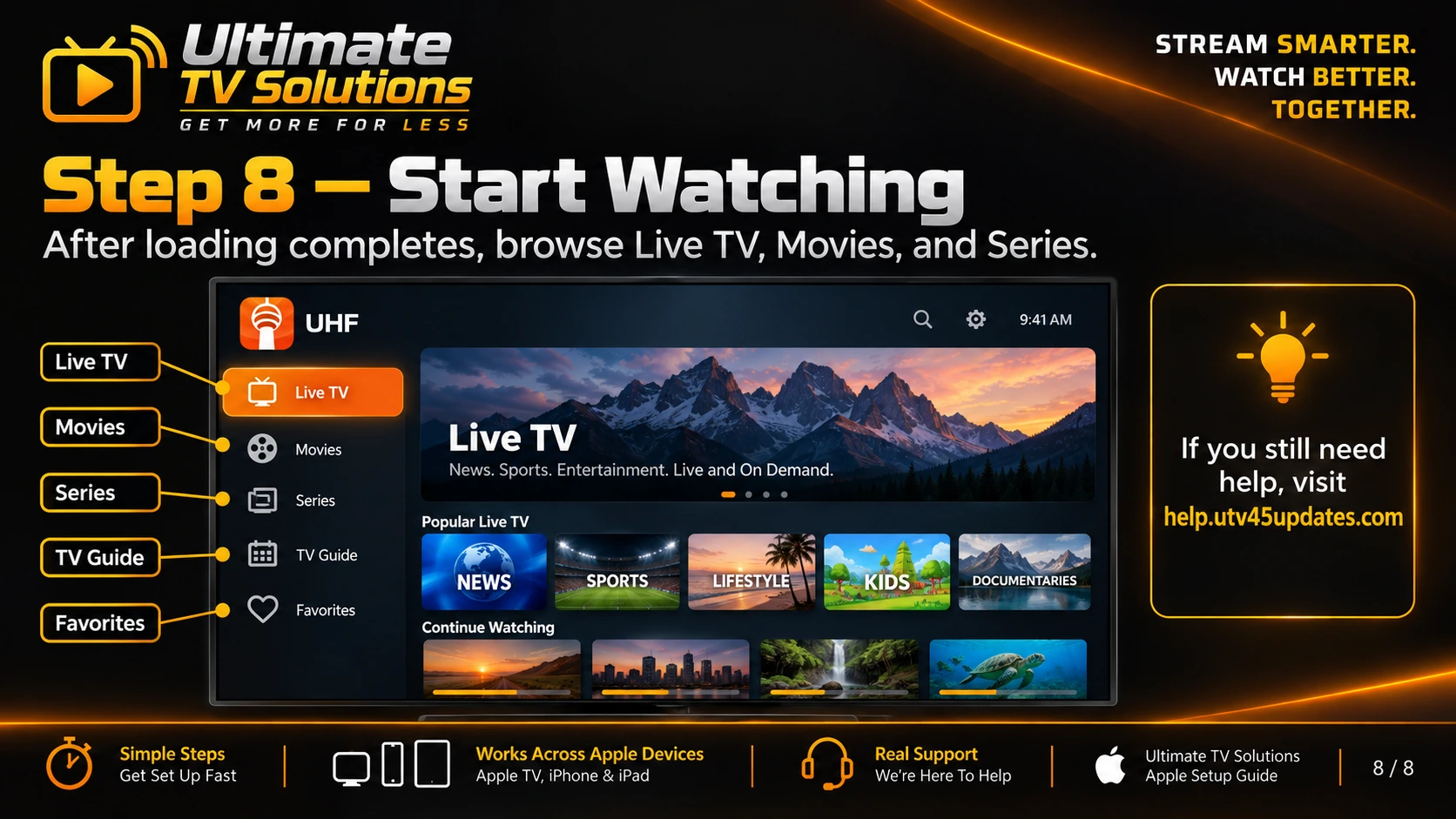
Step 8 — Start Watching
Once loading is complete, you can access Live TV, Movies, Series, TV Guide, and Favorites.
Troubleshooting
Wrong username or password
Re-enter the service credentials exactly as provided. Check uppercase and lowercase letters, remove accidental spaces, and ask your service provider to confirm the login if needed.
Incorrect server URL
Enter http://proxpanel.to:8080. Include http:// and :8080. Check the spelling and do not substitute https://.
Playlist will not load
Confirm Xtream Playlist is selected, then check the URL and credentials. Make sure your service account is active and your device is online. If loading continues to fail, reopen UHF and try again, then submit a ticket with a screenshot of the error.
Movies or Series still loading
The first import may take time. Leave UHF open while Movies, Series, and guide information finish loading. If progress stops, check your internet connection before trying again.
Internet connection issues
Confirm the device is connected to Wi-Fi or Ethernet. Test another app or website, restart the device and router if needed, and retry after the connection is restored.
UHF app installed but service does not appear
Installing UHF alone does not add your service. Create an Xtream Playlist with your Ultimate TV Solutions server and service credentials, then let the import finish. If the playlist is already present, select it and check the login information.
Need More Help?
Submit a support ticket through the Ultimate TV Solutions Support Center. Include your device model and a photo or screenshot of the issue.
https://help.utv45updates.com
Updated on: 03/10/2026
Thank you!